Instal·lació d'extensions a VS Codium des de fitxers VSIX

English version: Installing Extensions in VS Codium from VSIX Files Last update : 2024-09-01 VS Codium, la versió de codi obert de Visual Studio Code, no inclou totes les extensions del Visual Studio Marketplace a causa de problemes de llicència i compatibilitat. Aquesta guia et mostra com instal·lar manualment extensions que falten des de GitHub o altres fonts utilitzant fitxers VSIX, permetent-te personalitzar completament el teu entorn de desenvolupament. Pas 1: Troba el fitxer VSIX de l’extensió Visita el Visual Studio Marketplace o el repositori GitHub de l’extensió desitjada. Localitza el fitxer VSIX per a l’extensió. Si ets al Visual Studio Marketplace, navega a la pestanya “Historial de versions” de l’extensió i descarrega el fitxer .vsix corresponent a la versió que vols. Pas 2: Descarrega el fitxer VSIX Desa el fitxer .vsix en una ubicació coneguda al teu ordinador, com ara la carpeta de Descàrregues. Pas 3: Instal·la l’extensió a VS Codium Obre el teu terminal o la línia de comandes. Navega fins al directori on s’ha desat el fitxer VSIX. Per exemple, si és a la teva carpeta de Descàrregues, utilitza: cd ~/Descàrregues Instal·la l’extensió utilitzant la interfície de línia de comandes de VS Codium. Utilitza la següent comanda, substituint application-name-0.0.1.vsix pel nom real del fitxer VSIX descarregat: codium --install-extension application-name-0.0.1.vsix Pas 4: Verifica la instal·lació Obre VS Codium. Ves a la vista d’Extensions (pots obrir-la fent clic a la icona d’Extensions a la Barra d’Activitats al costat de la finestra). Comprova si la nova extensió instal·lada apareix a la llista d’extensions instal·lades. Consells Assegura’t que tens VS Codium instal·lat al teu sistema i accessible mitjançant la línia de comandes com a codium. Si trobes algun problema durant la instal·lació, revisa la sortida al teu terminal per a qualsevol missatge d’error que et pugui ajudar a solucionar-ho.
September 1, 2024 · 2 min · 298 words · retiolus

Installing Extensions in VS Codium from VSIX Files

Catalan version: Instal·lació d’extensions a VS Codium des de fitxers VSIX Last update : 2024-09-15 VS Codium, the open-source version of Visual Studio Code, doesn’t include all extensions from the Visual Studio Marketplace due to licensing and compatibility issues. This guide shows you how to manually install missing extensions from GitHub or other sources using VSIX files, allowing you to fully customize your development environment. Step 1: Find the Extension’s VSIX File Visit the Visual Studio Marketplace or the GitHub repository of the desired extension. Locate the VSIX file for the extension. If on the Visual Studio Marketplace, navigate to the “Version History” tab of the extension and download the .vsix file corresponding to the version you want. Step 2: Download the VSIX File Save the .vsix file to a known location on your computer, such as your Downloads folder. Step 3: Install the Extension in VS Codium Open your terminal or command prompt. Navigate to the directory where the VSIX file is saved. For example, if it’s in your Downloads folder, use: cd ~/Downloads Install the extension using VS Codium’s command line interface. Use the following command, replacing application-name-0.0.1.vsix with the actual filename of the downloaded VSIX file: codium --install-extension application-name-0.0.1.vsix Step 4: Verify the Installation Open VS Codium. Go to the Extensions view (you can open it by clicking on the Extensions icon in the Activity Bar on the side of the window). Check if the newly installed extension appears in the list of installed extensions. Tips Ensure you have VS Codium installed on your system and accessible via the command line as codium. If you encounter any issues during the installation, check the output in your terminal for any error messages that may help you troubleshoot.

September 1, 2024 · 2 min · 289 words · retiolus

Signal Desktop command line options

Signal does not provide any documentation for command line options, the problem is already discussed on GitHub, since 2019! This is a brief compilation of known options and will update if new ones are discovered until Signal provides official documentation. --enable-dev-tools Enables Developer Tools sidebar (Ctrl+Shift+I) and adds a shortcut to Menu Bar to open them. --enable-gpu Enables GPU acceleration. --use-tray-icon Enables Signal to display an icon in the system tray and allows for minimizing to the tray instead of exiting the app. How to. ...

May 30, 2024 · 1 min · 150 words · retiolus

Comment minimiser Signal Desktop dans la zone de notifications du système sur Linux

English version: How to minimize Signal Desktop to system tray on Linux Dernière mise à jour : 2024-04-03 J’utilise Signal sur mon bureau Linux depuis un certain temps et l’une des principales choses qui me dérange est le besoin d’avoir l’application ouverte pour recevoir des messages. Par défaut, l’application ne continue pas de fonctionner en arrière-plan lorsque vous la fermez, donc vous devez la minimiser et la laisser ouverte sur votre dock, et si vous la fermez par erreur, vous ne recevrez plus de notifications de messages. ...

April 3, 2024 · 2 min · 404 words · retiolus

How to minimize Signal Desktop to system tray on Linux

Version française: Comment minimiser Signal Desktop dans la zone de notifications du système sur Linux Last update: 2024-04-03 I’ve been using Signal on my Linux desktop for a while and one of the main thing that bother me is to need to have the app opened to receive messages. By default, the app doesn’t get to run in background when you close it, so you have to minimize it and have it opened on your dock, and if you close it by error, you won’t receive any more messages notifications. ...

March 19, 2024 · 2 min · 350 words · retiolus

Neofetch: mostra la informació del sistema amb estil

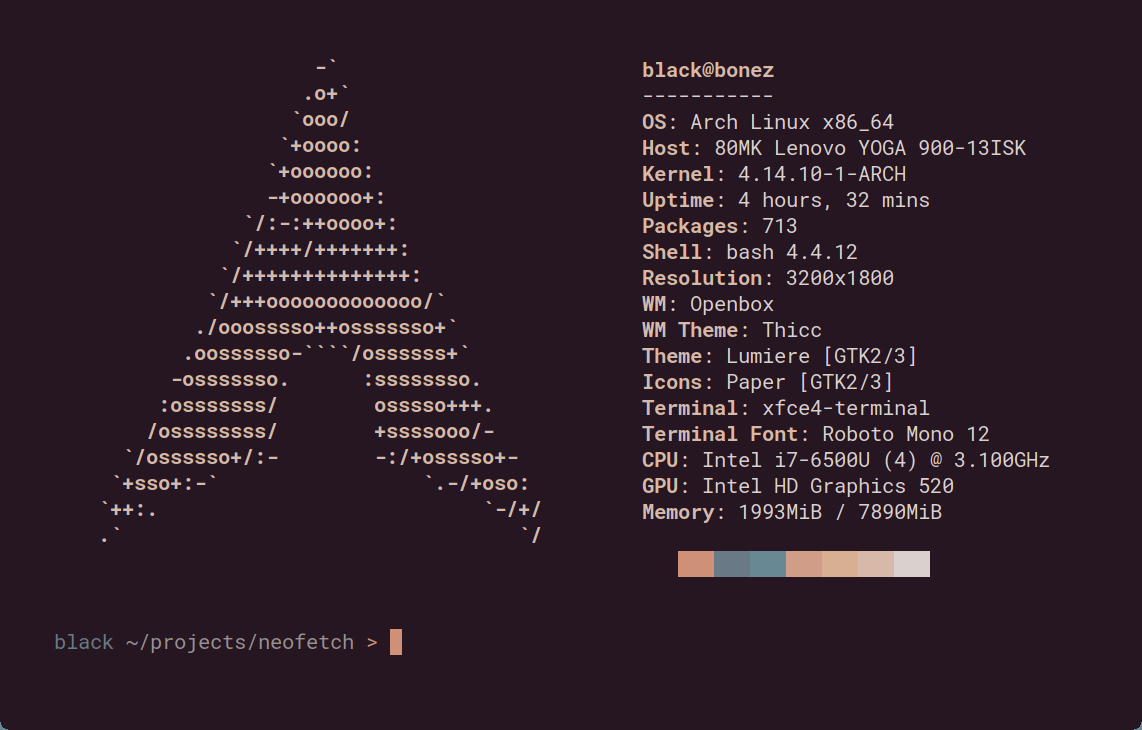
Última actualizació: 2024-02-05 Neofetch és una popular utilitat de línia d’ordres que mostra la informació del sistema d’una manera visualment atractiva. Reuneix detalls sobre el nostre sistema operatiu, nucli, maquinari i molt més, i els presenta en un format de text o d’art ASCII colorit. En aquest tutorial, veure com instal·lar Neofetch i explorarem algunes de les seves funcions clau. Instal·lació Sistemes basats en Debian/Ubuntu: sudo apt-get install neofetch Sistemes basats en Red Hat/Fedora: ...

February 5, 2024 · 2 min · 315 words · retiolus

How to register an AppImage as a desktop application in Linux

You have an .AppImage file and would like to treat it like an installed Linux app. The solution: Create a custom .desktop file. Download and Prepare Download the .AppImage file and an icon to your ~/Downloads directory. Move the .AppImage file to /usr/bin: sudo mv ~/Downloads/cryptomator.AppImage /usr/bin Make it executable: sudo chmod +x /usr/bin/cryptomator.AppImage Optionally, extract the .AppImage to grab the icon: ./cryptomator.AppImage --appimage-extract The icon is typically located in squashfs-root/usr/share/icons. Save or move the icon under /usr/share/icons/custom/cryptomator.png: sudo mkdir -p /usr/share/icons/custom && sudo mv squashfs-root/usr/share/icons/hicolor/256x256/apps/org.cryptomator.Cryptomator.png /usr/share/icons/custom/cryptomator.png Installation Options System-wide Installation To make the application accessible to all users, use the /usr/bin directory and /usr/share/applications for the .desktop file. Use sudo for the commands. ...

January 15, 2024 · 2 min · 235 words · retiolus